

How do I view and contact applicants using Idealist?

To view applicants for your listings, just click on the listing from your organization’s Dashboard
Please note that this option is only available on listings for which you have enabled applicant tracking . Check out our other articles to find out how applicant tracking works and how to opt in.
To get to your organization’s Dashboard, log in to idealist.org and click your name near the top right corner of the page. Then, select the name of your organization from the dropdown menu which will redirect to the Dashboard page. If you don't see your listings right away, click “Manage Listings” from the menu on the left.

Viewing & Downloading Documents
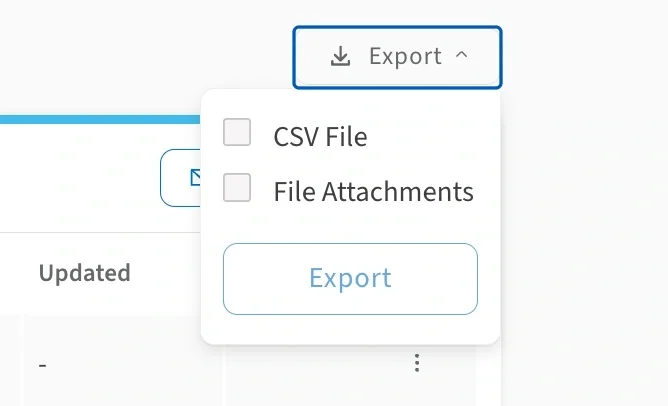
From the "Manage Listings" section, click on the specific listing you’re looking for and you’ll be taken to a page with all applicants. From here, you can select “Export” which will allow you to choose if you'd like to download:
- CSV File: An applicant summary spreadsheet of all the applicants
- File Attachments: A zip file with folders for each individual candidate's application documents.
You can also click on an individual's name from the applicant list to be taken to their specific application materials. From this detailed view, you'll have the ability to download their materials, make notes about the candidate and add additional administrators to your organization's account so that they can view applications as well.
Organizing Applications
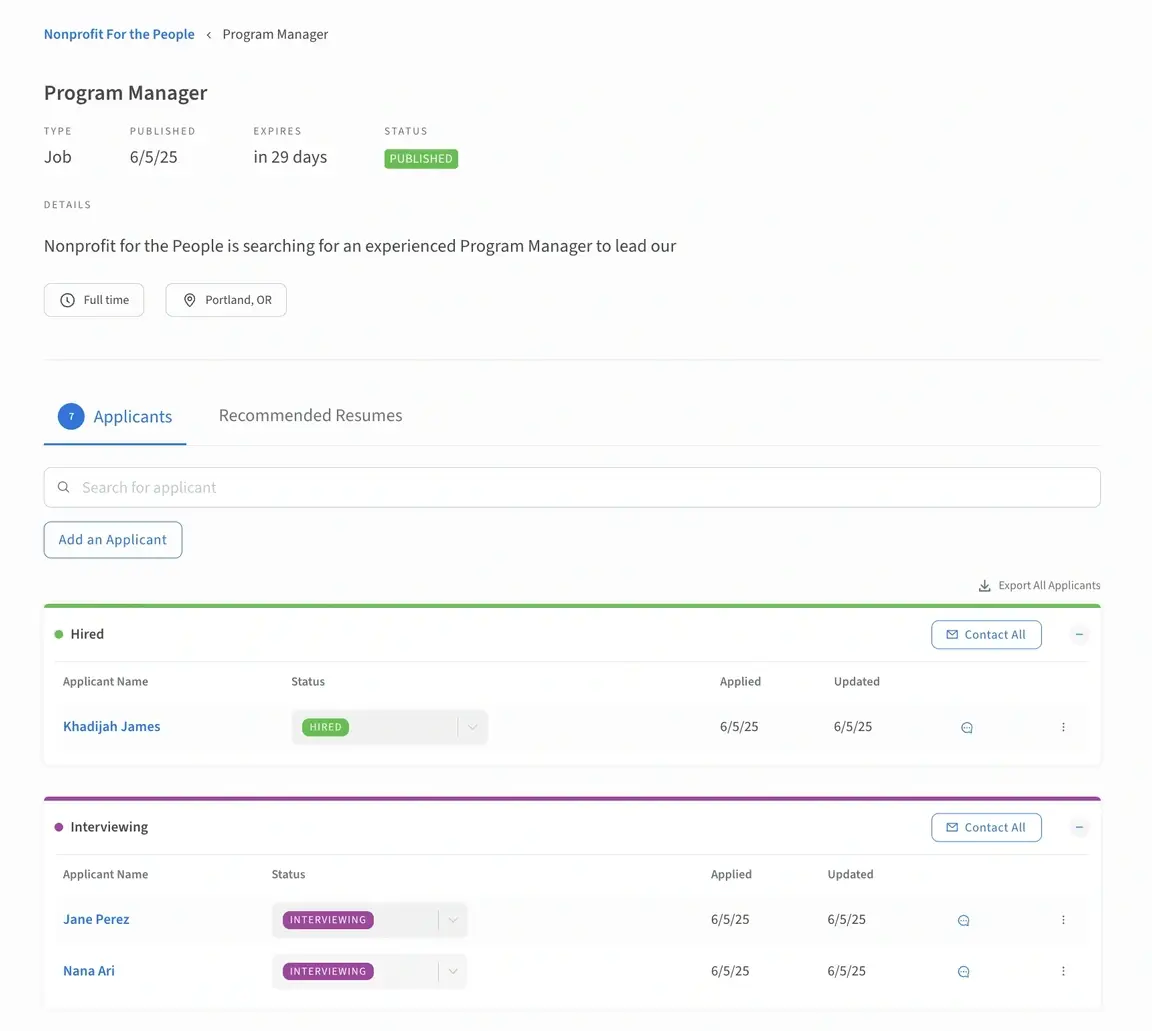
You can also change the status of the applicant to help organize the hiring process. To do so, click on the dropdown in the Status column next to the applicant's name and select a new status from the dropdown menu.
Status options for Job and Internship listings are:
- Applied
- Under Consideration
- Interviewing
- Made an offer
- Hired
- Disqualified
Status options for Volunteer listings are:
- New Inquiry
- Screening
- Waiting For Response
- Under Consideration
- Resulted in Volunteering
- Didn’t Work Out
Manually Adding Applicants
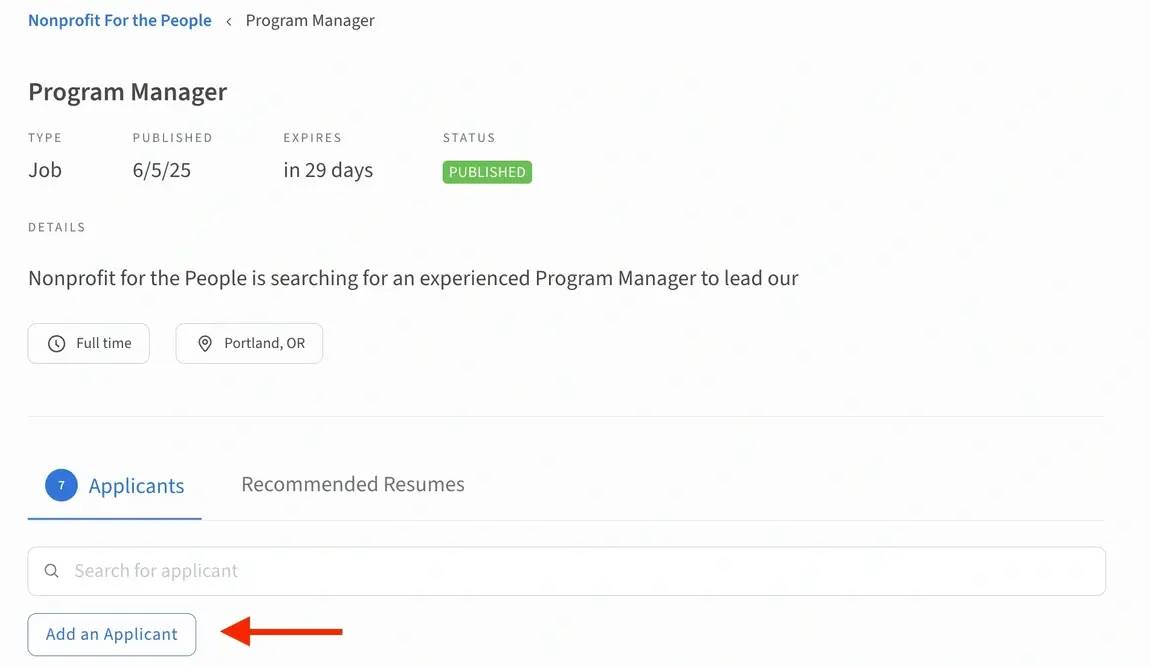
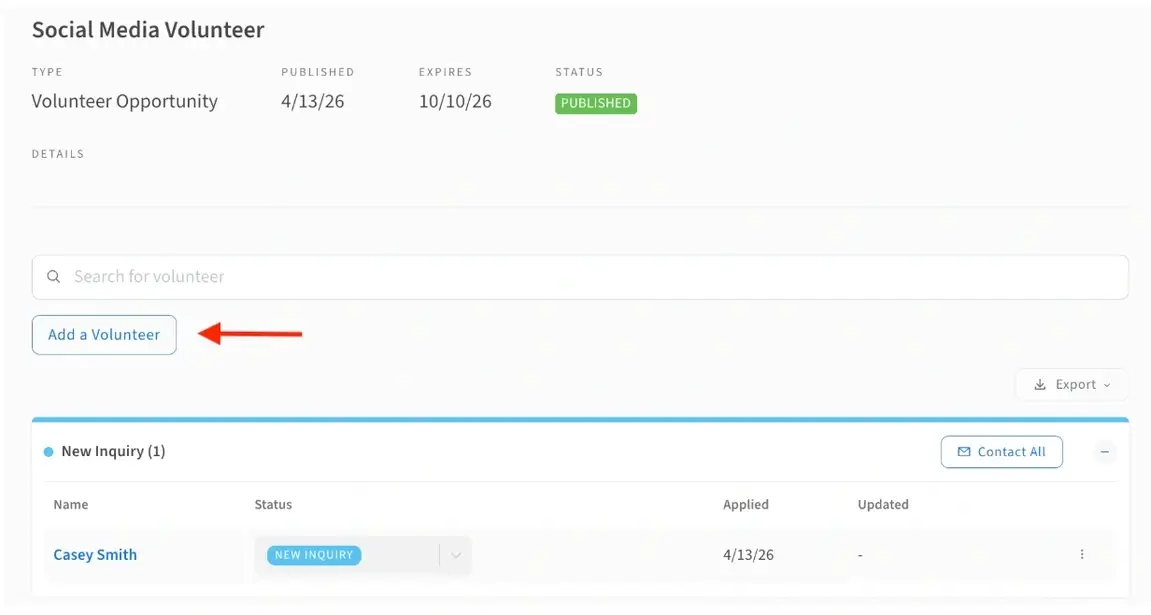
Tired of juggling multiple inboxes, platforms and spreadsheets to organize your applicants? Manage them all in one place, directly on Idealist. Navigate to your listing and click “Add an Applicant” or “Add a Volunteer” depending on your listing type. You can manually add an applicant’s name, email, and application documents, update their status, leave notes for colleagues, and contact all applicants.
Contacting Candidates
Applicants are not automatically notified of status changes you make to their application on Idealist. However, you do have the option to send bulk messages to each candidate group based on status. Click the “Contact All” button and you can customize a reply for each bucket of candidates.
Please note that candidates can be contacted multiple times throughout the recruitment process, but only once for each status type.
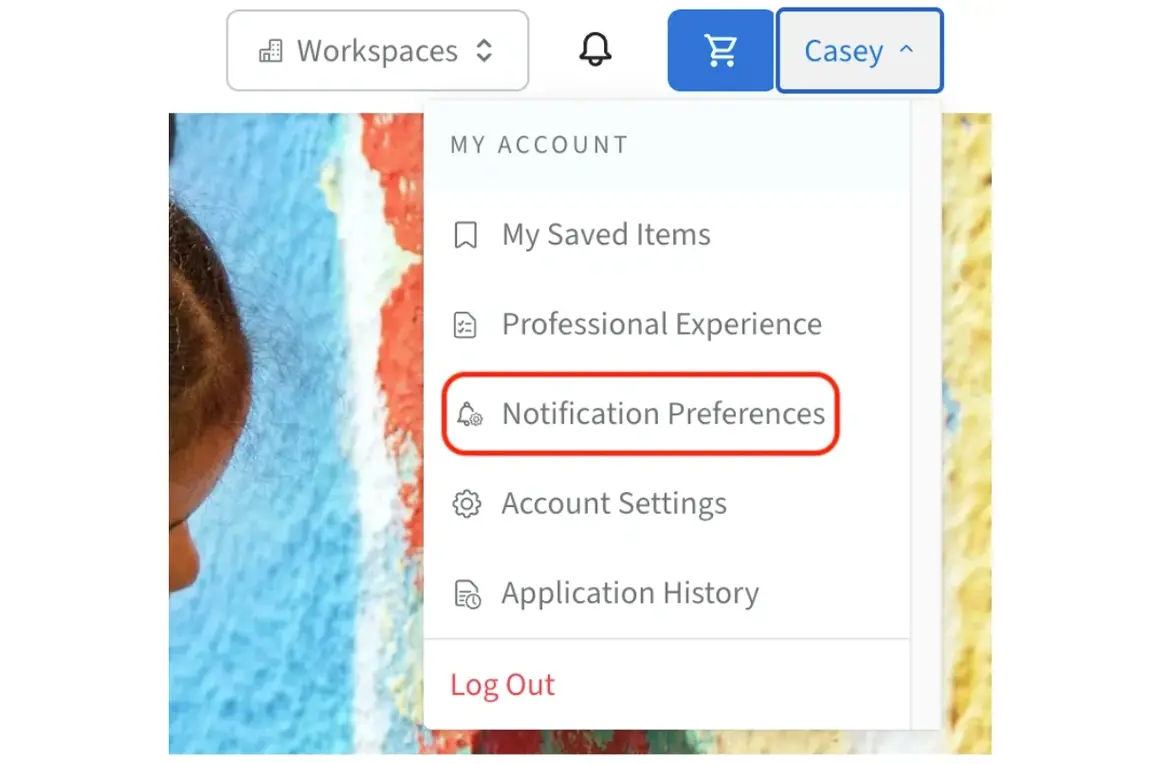
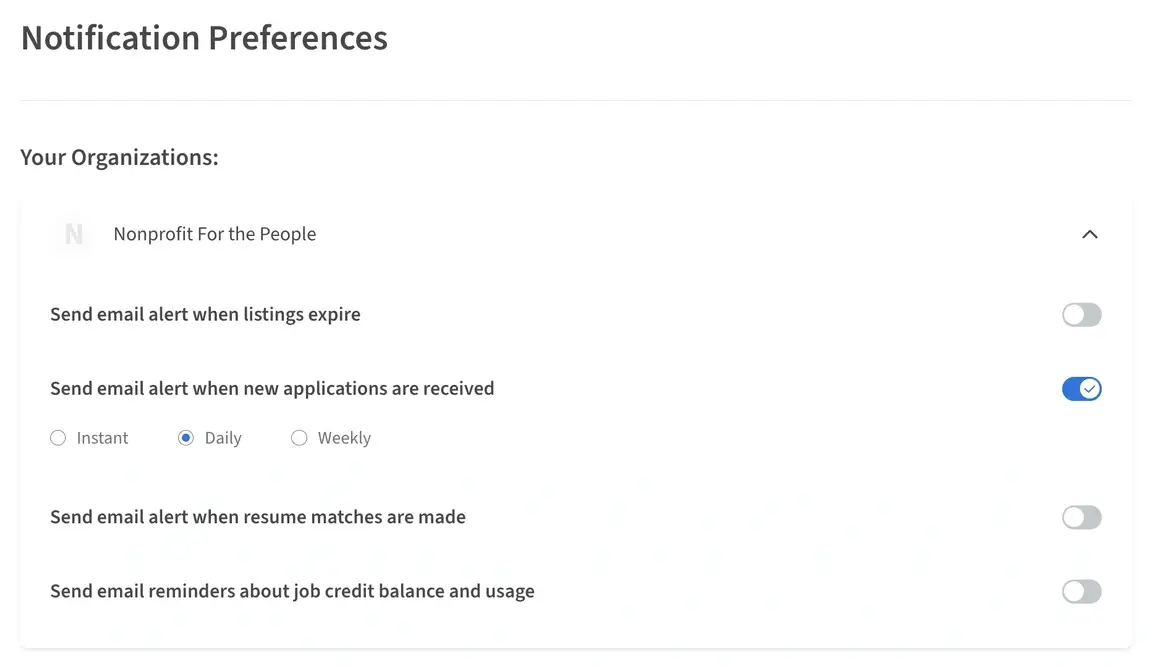
Click the down arrow next to your organization's name to expand your notification options. Here, administrators can adjust a variety of settings, including notifications for when new applications are received. Choose your preferred notification frequency: Instant, Daily, Weekly, or not at all.
Adjustments here will change your notification preferences, but won't affect the notifications of any other administrators.
Visit our other articles for more information on managing notifications on volunteer listings and assigning contacts to volunteer listings.
Contact Us
For more help with applicant tracking, feel free to Contact Us - we're always happy to help!