
Collage of a globe with map points at various locations

Use the location and radius fields in the search bar to narrow your search results.  

Please note that changing the location in your Account Settings will not automatically change the location in your saved searches. Visit our other article for more information about editing email alerts.

Desktop

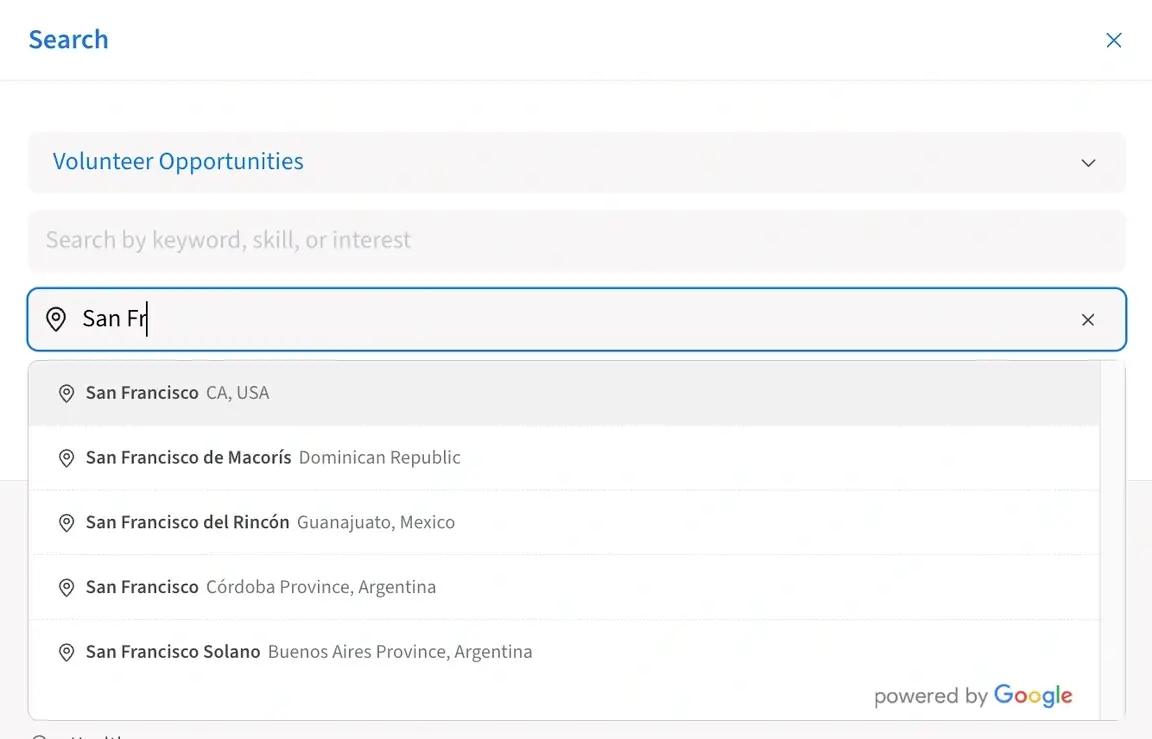
To change the location of your search in our desktop view, start typing your location in the location field (with the map pin icon) to the left of the Search button. Then, choose the appropriate location that populates in the dropdown window.

Screenshot of the Idealist website showing the location field in a desktop search

Mobile

To change the location of your search in our mobile view, click the magnifying glass in the upper right corner to reveal the location field. Start typing your location in the location field (with the map pin icon), then choose the appropriate location that populates in the dropdown window.

Screenshot of the Idealist website showing the location field in a mobile search
Screenshot of the Idealist website showing the magnifying glass in mobile view

Narrowing by Radius

To narrow your location more specifically, be sure to use the radius filter. This is especially helpful if you’re looking to save your search to receive email alerts.  

You must first enter a city as the location, then the radius filter will become adjustable. Click “Default Radius” next to the Location field, then select the number of miles from your location you’d like to search. 

Please note the radius will not be adjustable if you have not entered a location or if you have entered a location other than a specific city (such as a US state or a country).

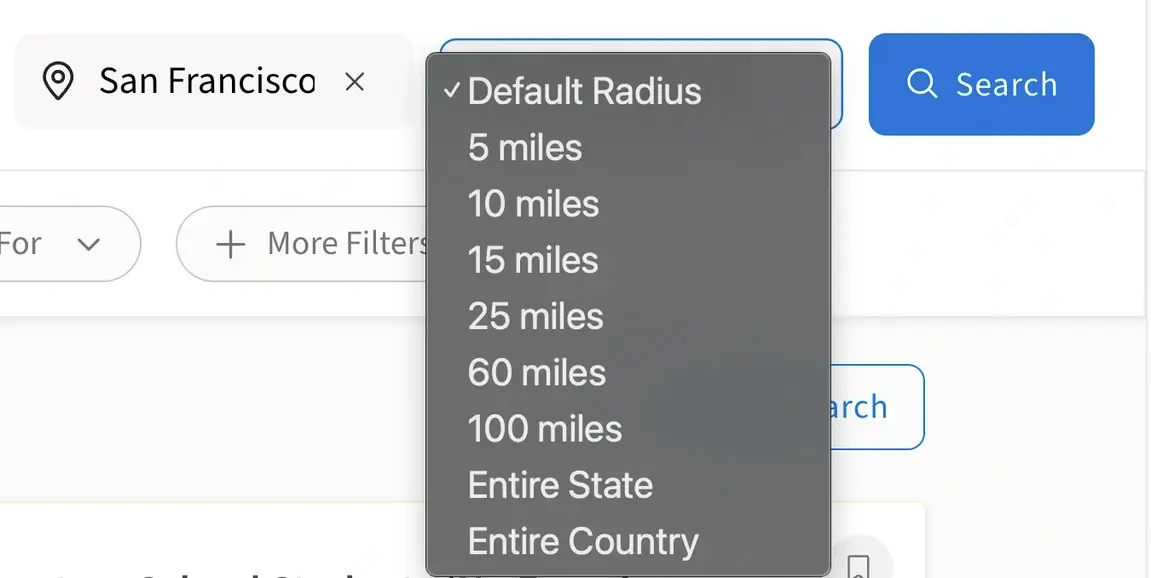
Screenshot of the Idealist website showing the Radius field in desktop view
Screenshot of the Idealist website showing how to narrow a search by radius

Contact Us

Have questions about searching? Contact Us—we’re always happy to help!